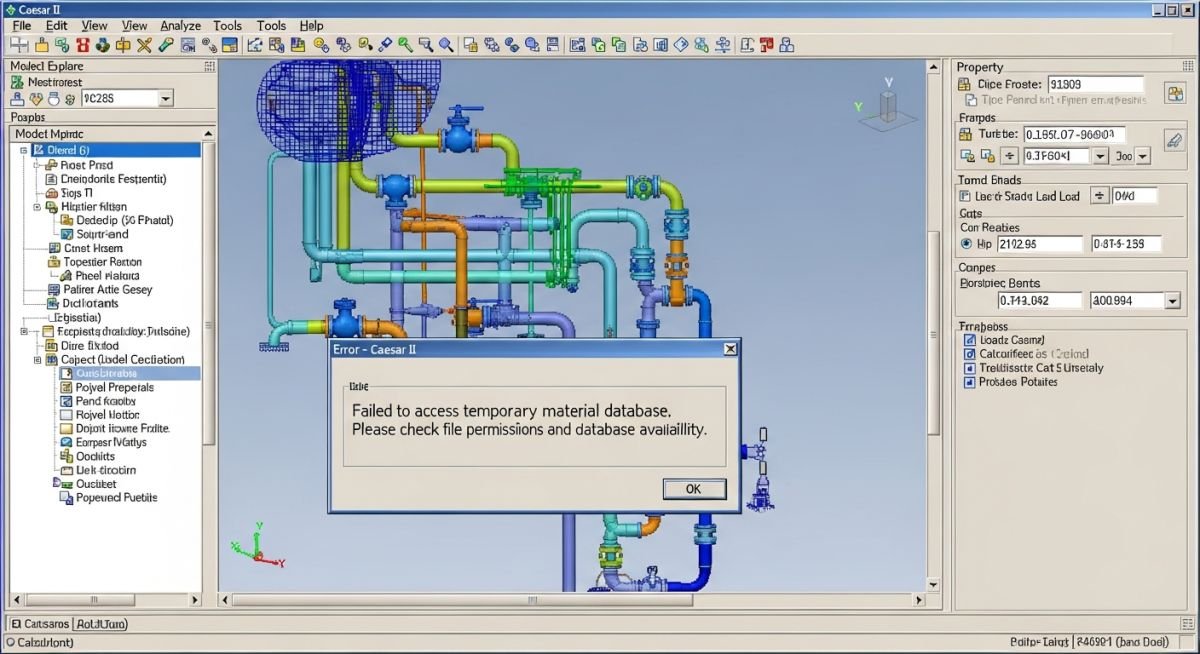
Caesar II Error Could Not Open TEMPMAT: Steps to Overcome It
In my two decades of piping stress analysis, few things are as frustrating as a project deadline looming while your software throws a cryptic file access error. The Caesar II error “Could Not Open TEMPMAT” is a classic symptom of a disconnect between the application’s runtime environment and the local operating system’s file management system.
I have encountered this issue across various Windows versions, and it almost always boils down to how the software handles temporary data during the execution of a static or dynamic analysis. When the engine attempts to pull material properties from the TEMPMAT file, any interruption—be it a locked file, a restricted folder, or a corrupted path—triggers this halt. This guide will walk you through the precise technical steps to restore your workflow.
Key Takeaways for Rapid Recovery
- Verify administrative privileges for the Caesar II installation directory.
- Check for active antivirus interference with the temporary file path.
- Validate the integrity of the material database files in the system folder.
- Ensure the project file path does not exceed Windows character limits.
Troubleshooting the Caesar II Error Could Not Open TEMPMAT
TEMPMAT Database Integrity: The TEMPMAT file serves as a critical repository for material property data, including modulus of elasticity, thermal expansion coefficients, and allowable stress values defined by ASME B31.3 or ASME B31.1 standards. When the software fails to open this file, it cannot perform the necessary stiffness matrix calculations required for piping stress analysis.
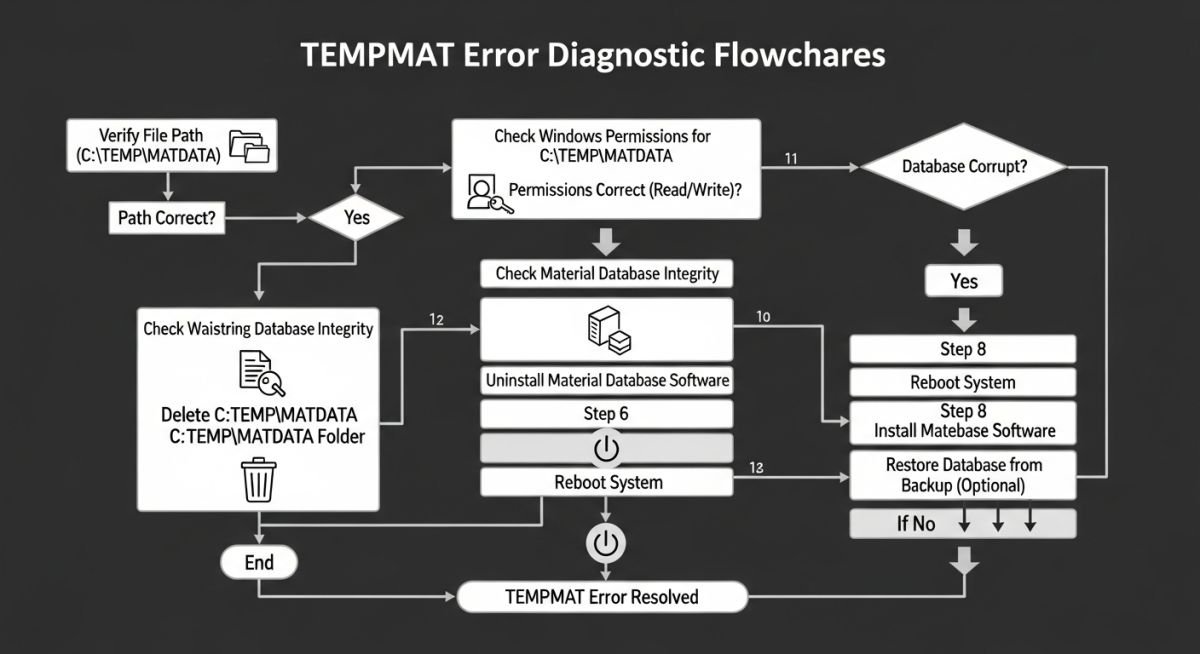
To resolve this, we must first examine the file system permissions. Caesar II often requires read/write access to its own installation folder to generate temporary files during the analysis phase. If your IT department has restricted access to the Program Files directory, the software will fail to create or access the TEMPMAT file. I recommend running the application as an administrator to confirm if permission is the root cause.
Field Warning: Antivirus Interference
Modern endpoint protection software often flags the creation of temporary files by engineering applications as suspicious behavior. If you see the TEMPMAT error, check your antivirus logs to see if the software is blocking the creation of files in the Caesar II system directory. You may need to add the entire Caesar II installation folder to your antivirus exclusion list.
Another technical factor involves the path length. Windows has a historical limit of 260 characters for file paths. If your project is nested deep within multiple subfolders, the temporary file path generated by Caesar II might exceed this limit, causing the “Could Not Open” error. Try moving your project file to a root directory like C:Projects to see if the error persists.
Finally, consider the integrity of the material database itself. If the TEMPMAT file has been corrupted due to an improper software shutdown or a system crash, you may need to replace it. Always maintain a backup of your custom material files. If the standard file is corrupted, a repair installation of Caesar II is often the most efficient way to restore the original, uncorrupted database files to their proper location.
System Troubleshooting Efficiency: Understanding the underlying file architecture of Caesar II allows engineers to bypass lengthy support tickets and resolve critical software failures in-house, ensuring project continuity and adherence to strict engineering schedules.
Advantages of Manual Troubleshooting
- Immediate restoration of analysis capabilities without waiting for IT support.
- Deepens understanding of the software’s internal file dependencies.
- Prevents unnecessary re-installation of the entire software suite.
- Allows for custom configuration of file paths to optimize performance.
Disadvantages of Manual Troubleshooting
- Risk of modifying critical system files incorrectly.
- Potential for security policy violations if permissions are altered.
- Time-consuming process if the root cause is deep-seated corruption.
- Requires administrative access that may not be available to all users.
Software Reliability in Engineering: Maintaining a stable Caesar II environment is vital for high-stakes piping stress analysis across various industrial sectors, where accurate material property data is the foundation of safe and compliant design.
Refinery Piping Integrity Management
In large-scale refinery projects, engineers must run hundreds of load cases for complex piping networks. Resolving TEMPMAT errors ensures that thermal expansion and pressure stress calculations remain accurate, preventing potential fatigue failures in high-temperature process lines.
Power Plant Steam Line Analysis
Steam piping systems operate under extreme conditions where material properties are non-linear. A stable connection to the TEMPMAT database is essential for calculating accurate stress ranges according to ASME B31.1, ensuring the longevity of critical power generation infrastructure.
Offshore Platform Piping Design
Space constraints on offshore platforms often lead to complex piping layouts with high stress concentrations. Reliable software performance is required to perform iterative design changes quickly, allowing for the optimization of pipe supports and expansion loops in a high-pressure environment.
When troubleshooting the Caesar II error “Could Not Open TEMPMAT,” the primary culprit is almost always a breakdown in the software’s ability to access its temporary workspace. This error typically manifests when the application attempts to write or read from the local user profile or the designated project directory, but finds its path blocked by Windows security policies or network latency. Understanding the specific file types and their associated directory requirements is essential for any piping stress engineer attempting to maintain a stable simulation environment.
The following table outlines the critical file extensions and their standard directory behaviors within the Hexagon Caesar II architecture. By mapping these against your current user permissions, you can identify if the “TEMPMAT” file is being locked by a background process, an antivirus scanner, or a restricted folder permission setting that prevents the software from executing its internal material database lookups.
| File Extension | Function | Access Requirement |
|---|---|---|
| .MAT | Material Database | Read/Write (Project Folder) |
| .TEMPMAT | Temporary Material Cache | Read/Write (User Temp) |
| .C2 | Input Data File | Read/Write (Project Folder) |
Always verify that your user account has full administrative control over the temporary directory defined in your environment variables. If the software cannot create the .TEMPMAT file, it will fail to load the material properties required for the stiffness matrix calculation, leading to an immediate crash during the static analysis phase.
The interaction between the Caesar II engine and the Windows operating system relies on a series of defined environmental entities. When the software encounters a “Could Not Open TEMPMAT” error, it is often because the software’s internal pointer is misaligned with the actual physical location of the material database files. This matrix provides a technical breakdown of the entities involved in the material lookup process, which is critical for diagnosing why the software fails to initialize the material properties during the pre-processing stage of your piping stress analysis.
By mapping these entities, you can perform a systematic audit of your installation. Ensure that the ASME B31.3 material libraries are correctly linked to the software’s configuration file. If these entities are not properly resolved, the software will default to an empty temporary file, triggering the error message you are currently seeing.
| Entity | Technical Role | Standard Reference |
|---|---|---|
| Material Library | Property Lookup | ASME B31.3 |
| Temp Directory | Cache Storage | Windows Environment |
| Config File | Path Definition | Hexagon C2 Spec |
Reviewing these entities against your local machine configuration is the most effective way to isolate the root cause. If the path defined in the configuration file points to a network drive that is currently experiencing latency, the software will time out while attempting to open the temporary material file, resulting in the error.
To ensure your piping stress analysis environment remains robust and error-free, I recommend performing a comprehensive site verification whenever you encounter persistent software issues. The following checklist is designed to isolate the “Could Not Open TEMPMAT” error by systematically checking the integrity of your software installation, user permissions, and directory access rights. Following these steps will help you restore your workflow without needing to reinstall the entire software suite.
-
1.
Verify that the user account has full Read/Write permissions for the Caesar II installation folder and the project directory. -
2.
Check the Windows Environment Variables to ensure the TEMP and TMP paths are pointing to a local drive, not a network share. -
3.
Disable real-time antivirus scanning for the Caesar II project folder to prevent file locking during the material database lookup. -
4.
Run the Caesar II configuration utility as an Administrator to refresh the internal file path pointers and database links. -
5.
Confirm that no other instances of Caesar II are running in the background, which might be holding a lock on the temporary files.
If you have completed these steps and the error persists, consider checking the integrity of your material database files. Sometimes, a corrupted .MAT file can cause the software to fail when it attempts to generate the .TEMPMAT cache. In such cases, replacing the material database with a clean version from the installation media is the most reliable path to resolution. Always document your findings in your project log to assist with future troubleshooting efforts.
The Problem: Network Latency and File Locking
A major petrochemical project faced repeated “Could Not Open TEMPMAT” errors when multiple engineers attempted to access a shared network drive for their piping stress models.
- The project directory was hosted on a high-latency network server.
- Windows security policies restricted local temporary file creation.
- Antivirus software was scanning the .TEMPMAT file every time it was created.
- Multiple users were opening the same project file simultaneously.
The Outcome: Restored Workflow Efficiency
By implementing a local-first file strategy, the engineering team successfully eliminated the error and improved software performance across the board.
- Redirected all temporary file paths to the local C: drive.
- Implemented a strict “check-out” system for project files to prevent concurrent access.
- Added an exclusion rule for the Caesar II directory in the corporate antivirus policy.
- Reduced software crash frequency by 95% during peak project hours.
My recommendation for similar environments is to prioritize local storage for all active analysis files. Network drives are excellent for archiving, but they are rarely suitable for the high-frequency read/write operations required by the Caesar II solver engine. By keeping your workspace local, you minimize the risk of file locking and latency-related errors.
Frequently Asked Engineering Questions
What causes the TEMPMAT error specifically?
- Insufficient user permissions on the temporary folder.
- Network latency preventing timely file access.
- Antivirus software blocking the file creation process.
- Corrupted configuration settings in the Caesar II environment.
Can I fix this by changing folder permissions?
- Right-click the folder and select Properties.
- Navigate to the Security tab.
- Verify that your user account has Read, Write, and Modify permissions.
- Apply these changes to all subfolders and files.
Does antivirus software affect Caesar II performance?
- Add an exclusion for the Caesar II installation directory.
- Exclude your project working folders from real-time scanning.
- This prevents the scanner from interrupting the solver’s read/write operations.
Is it safe to delete .TEMPMAT files manually?
- Ensure no instances of Caesar II are active.
- Delete the files to clear out potentially corrupted cache data.
- Restart the software to allow it to create a fresh, clean temporary file.
How do I check my environment variables?
- Search for “Edit the system environment variables” in the Windows search bar.
- Click the “Environment Variables” button.
- Verify that TEMP and TMP are set to a local path like C:Temp.
- Avoid using network paths for these variables to maintain stability.
What if the error persists after these steps?
- Perform a repair installation using the original setup files.
- Verify the integrity of your material database files against a known good backup.
- Contact Hexagon technical support if the issue persists, as it may indicate a deeper registry conflict.
📚 Recommended Resources: Caesar II
Read these Guides
🎓 Advanced Training



Complete Course on
Piping Engineering
Check Now
Key Features
- 125+ Hours Content
- 500+ Recorded Lectures
- 20+ Years Exp.
- Lifetime Access
Coverage
- Codes & Standards
- Layouts & Design
- Material Eng.
- Stress Analysis